Today I will show you, how to add a reading progress bar in your WordPress site. Reading progress bar is not really essential for your site but it’s more for the Blogger’s who like customizing their site.
To add a reading progress bar in your WordPress site you can use a Plugin. But if you don’t want to use a Plugin for this tiny feature then you use Custom Code as well.
In this post I will show you adding reading progress bar using both Plugin and Custom Code. Which one to use in your site it depends on you. If you are a newbie don’t know much about Coding then it’s better to use a Plugin instead of using Codes.
Because if you want to use the Code method then you must need to have some idea about Coding and how to implement them on a site. Even if you don’t have much idea about Coding or Editing Theme Files in WordPress you can still do it. Because in this post I’m going to explain it step by step with screenshots. So, let’s start.
How to Add a Reading Progress Bar in WordPress:
It is very easy to add a reading progress bar in your WordPress site. There arw two methods to do it as I already explain above. So, follow the below steps to add the reading progress bar in your WordPress site.
Before starting you can see the Demo below.
Method 1: Add Reading Progress Bar Using Plugin:
This method is recommended for you if you don’t want to mess with editing theme files or adding new codes to your site by yourself. Using a Plugin is very easy in WordPress, just install the plugin and follow the instructions.
- At first Login to your WordPress site. Then click on the Menu icon from top left corner.
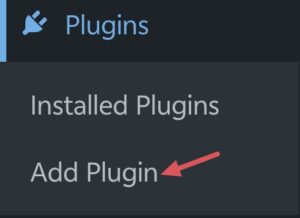
- Then navigate to Plugins > Add Plugin
 Download Image
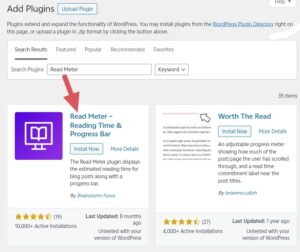
 - Then Search for Read Meter, and install the following Plugin by Brainstorm Force.
 Download Image
 - Active the Plugin.
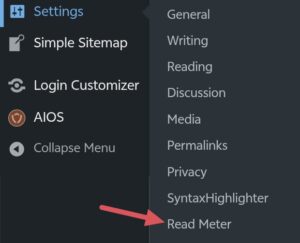
- Then navigate to Settings > Read Meter.
 Download Image
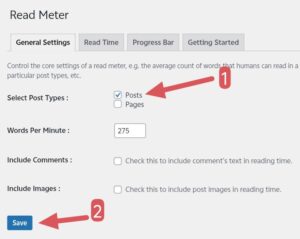
 - From General Settings select where to show the Reading Progress Bar. I recommend you to enable it only for posts.
 Download Image
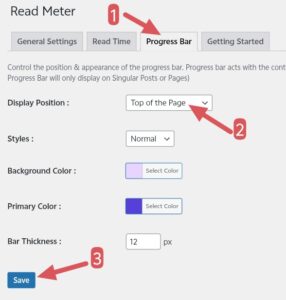
 - Then select the position of the Progress Bar. You can select Top or Bottom.
 Download Image
After saving open any of the posts in your site and you will see a Reading Progress Bar on top of the page.
You can Customize the Progress Bar if you want. Like, you can change position, color, bar thickness and even you can set the color to gradient instead of a plain color.
Method 2: Add Reading Progress Bar Using Code:
This method is for those who don’t want to add an extra Plugin in their site. Because sometimes using Plugin can slow down your site.
- At first copy the below code.
Code Example
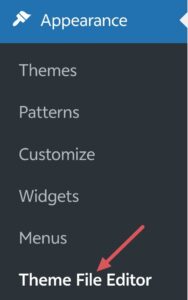
Loading code... - Then navigate to Appearance > Theme File Editor >
 Download Image
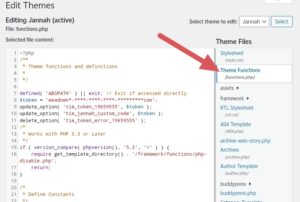
 - Then select functions.php and paste the copied code at the bottom of the all codes in functions.php
 Download Image
 - Then copy the following CSS code.
- Navigate to Appearance > Customize > Additional CSS > then paste the copied CSS code here and save it.
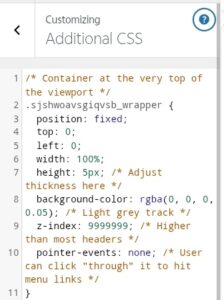 Download Image
That’s it. after saving the functions.php and additional CSS file your Reading Progress Bar will appear in Posts.
That’s all for today. I tried to explain it step by step with screenshot and easiest way possible. If you still have problem understanding anything please let me know in the comments below.
document.querySelectorAll(".gist-wrapper").forEach(function(box){
const url = box.dataset.gist; const codeBlock = box.querySelector(".gist-code code");
fetch(url) .then(res => res.text()) .then(code => { codeBlock.textContent = code; });
const btn = box.querySelector(".copy-btn");
btn.addEventListener("click", function(){ navigator.clipboard.writeText(codeBlock.innerText); btn.innerText = "Copied!"; setTimeout(()=>btn.innerText="Copy",1500); });
});