Your phone keeps switching between Wi-Fi and mobile data. Videos buffer. Downloads stall. You blame your internet provider, but the real problem might be sitting right in your settings.
Most people never touch their Wi-Fi configuration after the initial setup. Connect once, forget about it. But there’s a setting that controls how your phone handles weak signals, and it’s probably working against you.
The Problem With Staying Connected
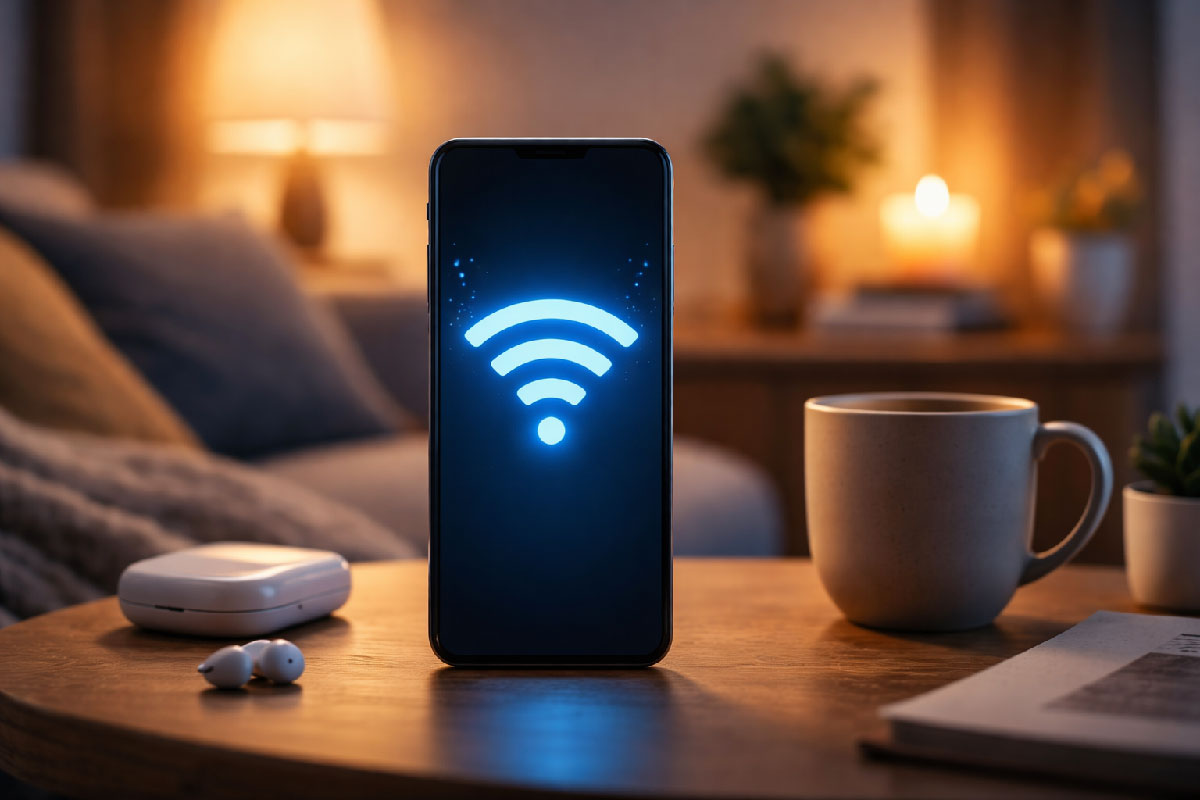
Your phone wants to be helpful. When you walk away from your router, it clings to that Wi-Fi connection even as the signal drops to almost nothing. You’re still technically connected, but nothing loads. Your phone shows the Wi-Fi icon, so it won’t switch to mobile data, leaving you in a dead zone.
This happens because of a feature called Wi-Fi assist or intelligent network switching, depending on your device. When it’s configured poorly, or when certain related settings are off, your phone becomes stubborn. It stays locked onto weak Wi-Fi instead of switching to your cellular connection, which might actually be faster and more reliable.
What Actually Controls the Switch
The setting that changes everything isn’t always obvious. On most Android phones, it’s buried under Wi-Fi preferences and might be called “Switch to mobile data automatically” or “Smart network switch.” On iPhones, it’s “Wi-Fi Assist” under Cellular settings.
When this feature works correctly, your phone monitors your Wi-Fi performance. If it detects that you’re connected but barely getting any data through, it temporarily uses mobile data instead. You stay connected to Wi-Fi in the background, but your apps pull data from your cellular connection until the Wi-Fi improves.
The problem is how aggressively it’s set, or whether it’s enabled at all. Some phones ship with it turned off. Others have it on but configured too conservatively, waiting until your Wi-Fi is completely unusable before switching.
Why Your Phone Hesitates
Manufacturers have reasons for being cautious. Mobile data costs money for many users. Switching too eagerly could burn through your data plan without you noticing. So they err on the side of staying with Wi-Fi, even when it’s barely functional.
There’s also the battery consideration. Constantly scanning and switching between networks drains power. Your phone tries to find a balance between performance and battery life, and sometimes that balance doesn’t match how you actually use your device.
When Staying Connected Hurts You
Think about walking through your house. You’re in the kitchen, far from the router in the living room. Your phone shows two bars of Wi-Fi, but when you try to load something, it just spins. You’re connected to a network that can’t actually deliver data at a usable speed.
Or consider public Wi-Fi. You connected at a coffee shop, then walked down the street. Your phone is still trying to hold onto that network even though you’re nowhere near it anymore. Meanwhile, your perfectly good mobile connection sits idle.
This same issue affects video calls. You’re talking to someone, the call starts breaking up, but your phone won’t switch because technically you’re still connected to Wi-Fi. The other person can’t hear you, and you can’t hear them, but your device thinks everything is fine.
The Tradeoff You Need to Understand
Enabling aggressive network switching isn’t free. Your phone will use mobile data more often, which matters if you have a limited plan. You need to decide whether smooth performance is worth potentially higher data usage.
For most people with unlimited or high data caps, the answer is obvious. Letting your phone switch freely improves your daily experience significantly. For those with tight data limits, you might want to leave it off and manually switch when Wi-Fi gets slow.
What Changes When You Fix It
Once you enable and properly configure this setting, your phone becomes noticeably more responsive. Apps load faster. Videos don’t stutter as much. You stop experiencing those annoying moments where everything freezes but your Wi-Fi icon still shows connected.
Your phone also reconnects to Wi-Fi automatically when the signal improves. If you walk back toward your router, it switches back without you doing anything. The transition happens in the background, usually without you noticing.
Other Settings That Work Together
This main setting works better when paired with a few others. “Avoid poor connections” or similar options prevent your phone from automatically joining weak networks in the first place. If a saved network has terrible signal, your phone just won’t connect.
There’s also network rating or quality monitoring on some devices. Your phone learns which saved networks are reliably fast and which ones cause problems. Over time, it gets better at choosing which connection to use.
Making the Change
The exact location varies by device, but the concept is the same. Find your Wi-Fi or cellular settings, look for options related to network switching or intelligent connectivity, and turn them on. Some phones let you adjust sensitivity or set thresholds.
After changing it, use your phone normally for a few days. Pay attention to whether apps feel more responsive, especially when you’re moving around. Check your data usage after a week to make sure you’re comfortable with any increase.
Your phone is smarter than you think. It just needs permission to make decisions that prioritize your actual experience over theoretical efficiency. That one setting makes the difference.
Key Takeaways
- Your phone often clings to weak Wi-Fi signals instead of switching to mobile data, causing slow loading times and buffering issues
- The critical setting is called “Wi-Fi Assist” on iPhones or “Switch to mobile data automatically” on Android devices, and it’s often turned off or configured too conservatively
- This feature monitors Wi-Fi performance and temporarily uses cellular data when your Wi-Fi connection becomes too weak to be useful
- Manufacturers set conservative defaults to protect users from unexpected data usage and battery drain
- Enabling aggressive network switching improves responsiveness but may increase mobile data consumption, so consider your data plan limits
- The setting works best when combined with options like “Avoid poor connections” that prevent joining weak networks automatically
- Your phone can learn over time which saved networks are reliable and make better switching decisions
- After enabling the setting, monitor your data usage for a week to ensure you’re comfortable with any changes
Conclusion
The frustration of staring at a loading screen while your phone shows a Wi-Fi connection is entirely avoidable. That single setting controlling how your device handles weak signals can transform your daily experience from stuttering and stalling to smooth and responsive. While it requires a small tradeoff in potential data usage, most users with reasonable data plans will find the improved performance well worth it. Your phone already has the intelligence to manage connections effectively—it just needs you to unlock that capability. Take a few minutes to adjust this setting, and you’ll wonder why you tolerated sluggish performance for so long.